



 Nederlands
 Italiano
 Português
 Română
 Español
 Ελληνικά
 Polski
 Türkçe



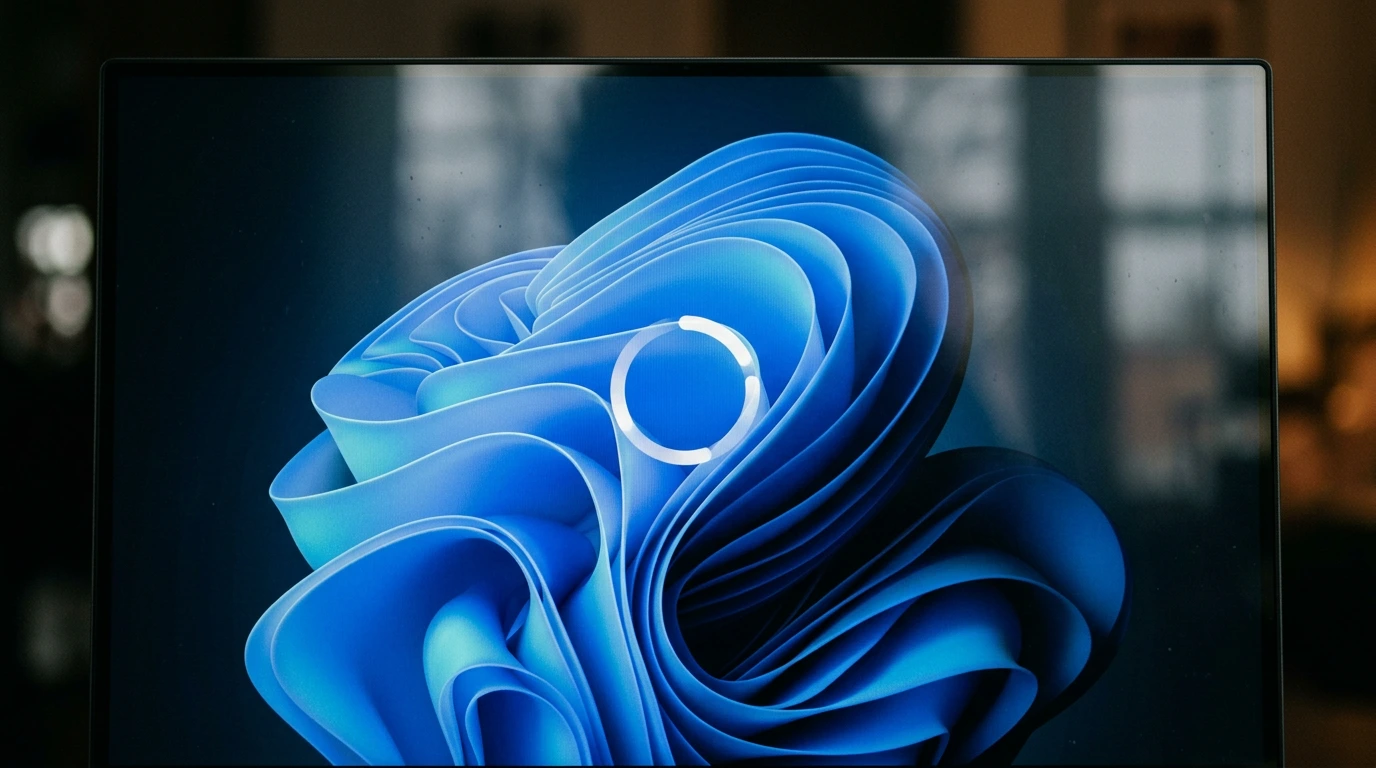
An older laptop that used to hit the desktop in twenty seconds now takes two full minutes, and those spinning dots feel like they never stop. That’s usually the moment someone starts pricing out a new machine.
But a slow boot is rarely the hardware giving up. Far more often it’s a pile of programs all racing to launch the second Windows loads, plus one or two settings quietly working against you. Before spending money, it’s worth an hour with the tools already sitting inside Windows 11.
So here’s what actually causes a windows 11 slow boot, plus how to speed up windows 11 startup without disabling half the things your PC needs to function.
Why the Usual Advice Backfires
Most guides say the same thing. Open Task Manager, go to Startup, turn everything off. Simple, sure. Also a mistake.
Disable everything and you break the stuff that’s supposed to run early. Antivirus loses its startup hook, so real-time protection kicks in late. Your cloud sync client (OneDrive, Dropbox, whatever) stops loading, and suddenly files aren’t where you left them. Password managers don’t pre-load. So the PC boots a little faster and works a lot worse.
Then there’s the other problem, which nobody mentions – not every startup entry costs the same. A tiny helper that registers a keyboard shortcut barely touches your boot time. A creative suite’s background updater that phones home and indexes files can add real seconds. Treating those two the same way is exactly why “just disable it all” is bad advice.
Point is, the goal isn’t fewer startup programs. It’s fewer heavy ones you don’t actually need the moment you log in.
How to Speed Up Windows 11 Startup: Read the Startup Impact Column First
Here’s the part almost nobody explains. Windows already rates every startup program for you.
Press Ctrl+Shift+Esc to open Task Manager, then click the Startup apps tab (older builds just call it Startup). You’ll see everything that launches at login, and one column labeled Startup impact. That rating – the startup impact task manager column – is Windows telling you roughly how much each app slows your boot, based on CPU and disk activity it measured during previous startups.
Ratings run Low, Medium, High, and sometimes “Not measured” for apps that haven’t been through a boot cycle yet. Click the column header to sort so the High entries sit up top.
Now the decision. For each High-impact item, ask whether you actually need it running the instant you log in. A game launcher’s updater? No, it can wait until you open the game. A manufacturer’s “assistant” that checks for driver updates? Almost never needed at boot. Adobe’s background service – disable it and launch the app by hand when you actually use it.
Leave the things that genuinely need an early start. Right-click anything you want gone and choose Disable. This doesn’t uninstall it or block it forever, it just stops the automatic launch. Flip it back on the same way if something starts misbehaving.
That single pass, done with a bit of thought, is the core of how to disable startup programs windows 11 without wrecking your setup.
Fast Startup: The Setting That Cuts Both Ways
Windows 11 ships with a feature called fast startup windows 11, sometimes labeled “fast boot.” It saves a slice of your system state to disk on shutdown (a partial hibernation file) so the next boot can skip part of the loading process. On paper, faster.
In practice it’s inconsistent. On machines with a modern SSD and clean drivers, Fast Startup does shave a few seconds. On older hardware – spinning drives especially, or dated drivers – it sometimes does the opposite and produces a windows 11 slow boot, because the saved state bloats or the drivers don’t resume cleanly.
It causes odd side effects too. A “shutdown” with Fast Startup on isn’t a true shutdown, so some updates never finish applying, and dual-boot setups can lock the drive. If your boot got slower or flakier and you never touched a thing, this is a prime suspect.
To find it: Control Panel → Power Options → Choose what the power buttons do → Change settings that are currently unavailable → toggle Turn on fast startup.
Honest answer on whether to leave it on? It depends on your machine, so test both ways. Turn it off, do three or four full restarts, time them. Then turn it back on and compare. Keep whichever setting is actually faster on your PC instead of trusting the default.
“Fast Startup is the one boot setting where the “right” answer genuinely differs per machine. Test it, don’t assume it.”
A Sensible Order to Work Through
Rather than randomly toggling things, run through this sequence once. It moves from highest payoff down to lowest.
| Step | What to do | Typical payoff | Risk if done wrong |
|---|---|---|---|
| 1 | Task Manager → sort Startup impact, disable “High” apps you don’t need at login | High | Low (reversible) |
| 2 | Test Fast Startup on vs off, keep the faster one | Medium | Low |
| 3 | Uninstall bloatware and trial software you never open | Medium | Low |
| 4 | Check for pending Windows updates and driver updates | Medium | Low |
| 5 | Confirm the boot drive isn’t 90%+ full | Low-Medium | Low |
Steps 1 and 2 are where the real time lives. Everything below is housekeeping – it helps, but it won’t change a two-minute boot on its own. XDA Developers covers several of these in their guide on ways to make Windows 11 boot faster, and How-To Geek’s walkthrough on speeding up Windows 11 boot time lands on the same priority order.
And if none of it moves the needle, that’s a real signal too. A genuinely worn drive, or a machine below the Windows 11 minimum requirements (a 64-bit CPU with 2+ cores, 4GB RAM, TPM 2.0, per Microsoft’s published Windows 11 system requirements), won’t be fixed by startup tuning alone.
Troubleshooting the Common Snags
A few things trip people up during this.
Something you disabled turns out to matter. Maybe your VPN won’t connect on login, or a backup tool stopped running. Just re-enable it in the same Startup tab. Nothing you did there is permanent, which is exactly why the impact-column method beats any registry hack.
Impact column shows “Not measured” for a lot of entries. Normal on a fresh install, or right after an update. Windows needs a boot cycle or two with the app present before it can rate it – so restart, use the machine, check again in a day.
Fast Startup won’t turn off, or the option is greyed out. Click Change settings that are currently unavailable first, and hibernation has to be enabled for the toggle to even appear. If it’s missing entirely, run powercfg /hibernate on in an elevated Command Prompt.
Boot still crawling after a clean startup list? Watch disk usage in Task Manager during boot. If it pins at 100% for a minute on an old hard drive, the drive itself is the bottleneck, and that’s the point where new hardware or a fresh Windows install genuinely earns its keep.
On the clean-install note – if a slow, cluttered Windows install is beyond saving and you decide to reinstall fresh, you’ll want a valid activation key ready. Genuine Windows 11 Pro and Home licenses are available at a discount through legitimate resellers, and Keyfy’s licenses are sourced through authorized channels for official digital activation rather than any workaround. A clean install with a genuine key typically activates within a few minutes once you’re online.
FAQ
Does disabling startup programs actually speed up boot, or is it a myth?
It genuinely helps, but only if you target the heavy hitters. Disabling a handful of “High” impact apps you don’t need does far more than disabling many “Low” ones. That’s the whole reason the Startup impact column exists.
Should I turn Fast Startup on or off for a faster boot?
Neither answer is universal. On newer SSD machines it usually helps slightly; on older systems it often hurts. Test both, time a few restarts each way, keep the faster one.
Is it safe to disable everything in the Startup tab?
No. You’ll break antivirus timing, cloud sync, and other tools meant to load early. Disable selectively, and leave security and sync software enabled.
Why did my Windows 11 boot suddenly get slower after an update?
Updates can reset Fast Startup behavior, add new startup services, or leave drivers mid-resume. Check the Startup tab for freshly added High-impact entries and re-test Fast Startup after any big update.
When is it time to stop tuning and just replace the machine?
If disk usage sits at 100% during boot on an old spinning drive, or the PC falls short of Windows 11’s minimum specs, tuning has hit its ceiling. A drive swap or a clean reinstall is the next step.
Wrapping Up
The fix for a slow-booting Windows 11 PC isn’t a purge, it’s a targeted trim. Sort the Startup impact column, disable the few High-impact apps you don’t need at login, test Fast Startup both ways, clear out the obvious bloat. Most older machines get a real boost from that alone – no new hardware required.
That’s how to speed up windows 11 startup without a purge or guesswork.