




 Nederlands
 Italiano
 Português
 Română
 Español
 Ελληνικά
 Polski
 Türkçe

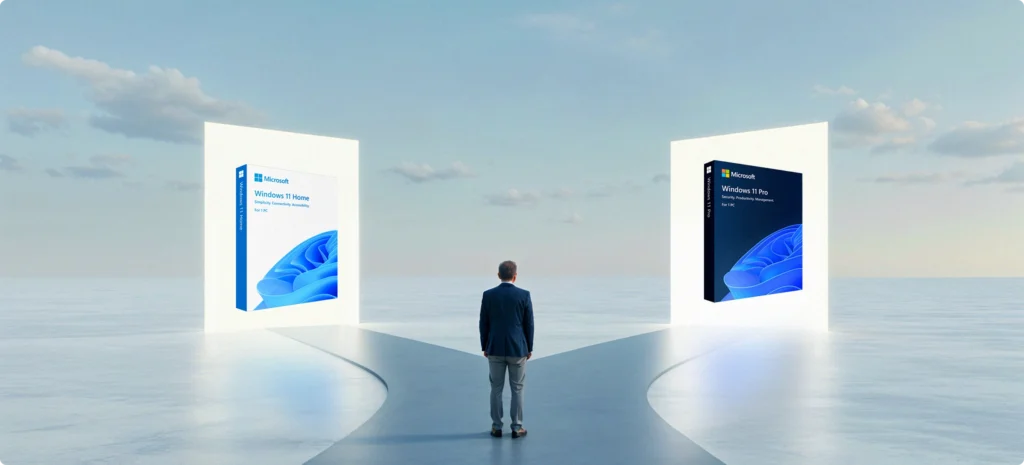
Most people don’t actively choose between Windows 11 Home or Pro — they simply end up with one edition. Either it came preinstalled on the laptop or just sounded like the “better” option.
But when you buy the license yourself — whether for a single device or several — the difference suddenly matters. Not in terms of how the screen looks, but in what you can control, protect, and customize in the background.
This guide breaks it down clearly and in plain language:
- Which features are exclusive to Pro (and why they’re not just for IT pros)
- Where Home is actually just as good — or even better
- Who should pay extra — and who can safely save the money
We’ve stripped out the tech jargon, added the important context, and included real-world examples so you can make the smarter choice — no guesswork, no sales fluff.
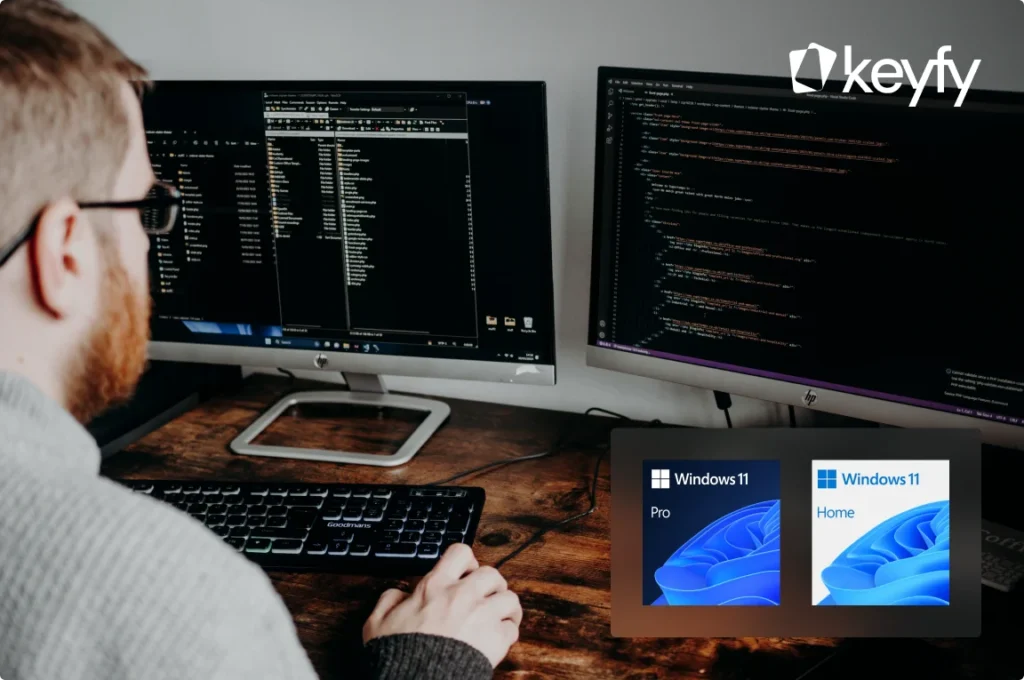
Windows 11 Home vs. Pro – Which edition fits you better?
If you’re wondering which version is the better fit for your setup, here’s an overview of what really differs — not just in features, but in how those differences affect different types of users.
| User type | What you need | Windows 11 Home | Windows 11 Pro |
|---|---|---|---|
| Everyday user | Stable OS for web browsing, Office, Netflix, and light gaming | ✅ Yes | Optional |
| Freelancer | Email, files, video calls, basic admin tasks | ✅ Yes | Better for sensitive data |
| Customer management | File encryption, remote access, privacy tools | ❌ Limited | ✅ BitLocker, Remote Desktop, WIP |
| Small business / teams | Management tools, control, remote support | ❌ No centralized management | ✅ Group Policy, Azure AD |
| Developers or IT users | Run virtual machines, test apps, isolate software | ❌ No built-in tools | ✅ Hyper-V, Sandbox |
| Gamers | Fast load times, great performance | ✅ Identical | ✅ More control for streamers |
| Parental control setup | Restrict apps, lock down settings | ✅ Basic controls | ✅ Full policy control |
Price and value: The difference is smaller than you think
Let’s start with the obvious: price. Most people assume Windows 11 Pro is only for businesses because it’s “more expensive.” That’s true — if you buy directly from Microsoft, where:
- Windows 11 Home is around $139
- Windows 11 Pro can be $199 or more
At Keyfy, both editions are significantly more affordable:
- Windows 11 Home license: $24.89
- Windows 11 Pro license: $29.89
For just €5 more, Pro gives you professional-grade features like full disk encryption, virtualization, Group Policy management, and Remote Desktop access.
So the real question is: “Do you actually need these tools for the way you work — or does Home already cover everything you use day to day?”
Windows 11 Pro and Home share the same official system requirements and can be installed and run on any compatible device. However, if your PC is older or less powerful — limited RAM, older CPU, or slower SSD — Windows 11 Home is the leaner option. It runs fewer background services and skips enterprise features that are irrelevant for private use.
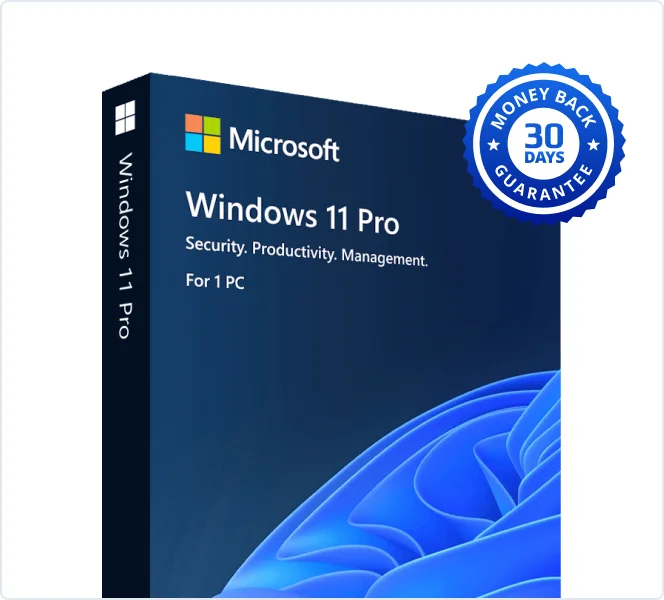
Get your Windows® 11
Professional or Windows® 11 Home
license now!
In short: Pro won’t slow down a powerful system, but on entry-level devices Home can feel a bit lighter and smoother. For most people, it covers everything they actually use in everyday life.
If your setup is simple or you’re working with a tight budget, Home is the smarter and more efficient choice. But if you handle sensitive data, do a lot of multitasking, or plan to grow into more complex workflows, Pro is a worthwhile upgrade — especially at this price.
And yes, you can always start with Home and upgrade later. But if you already know you’ll need the extra features, it’s often easier — and cheaper — to go straight to Pro.
Security: How much protection do you really need?
Windows 11 Home includes all the core security features most home users need:
- Windows Defender Antivirus
- Firewall and network protection
- Secure Boot to prevent tampering
- Core isolation and memory integrity
For casual users, that covers most common threats — malware, viruses, phishing, and unauthorized access.
Windows 11 Pro goes a step further — and these extra security layers are especially important if you work with business documents, contracts, invoices, or often work in public places.
Exclusive Pro features:
- BitLocker drive encryption – encrypts your entire drive. Even if someone physically steals your laptop, they can’t access your files.
- Windows Information Protection (WIP) – separates work files from personal files and prevents sensitive business data from being shared by accident.
- Support for Active Directory & Azure AD – especially useful in business environments for centrally managing users and devices.
A 2024 report from Cybersecurity Ventures shows that 43% of all cyberattacks target small businesses or self-employed professionals, and 61% of those attacks happen through compromised user devices — not servers. Full disk encryption like BitLocker can prevent data loss even after physical theft.
If you’re a freelancer or professional working from home — or you simply want maximum data security — these features aren’t overkill. They’re essential.
Performance: Is Windows 11 Pro actually faster?
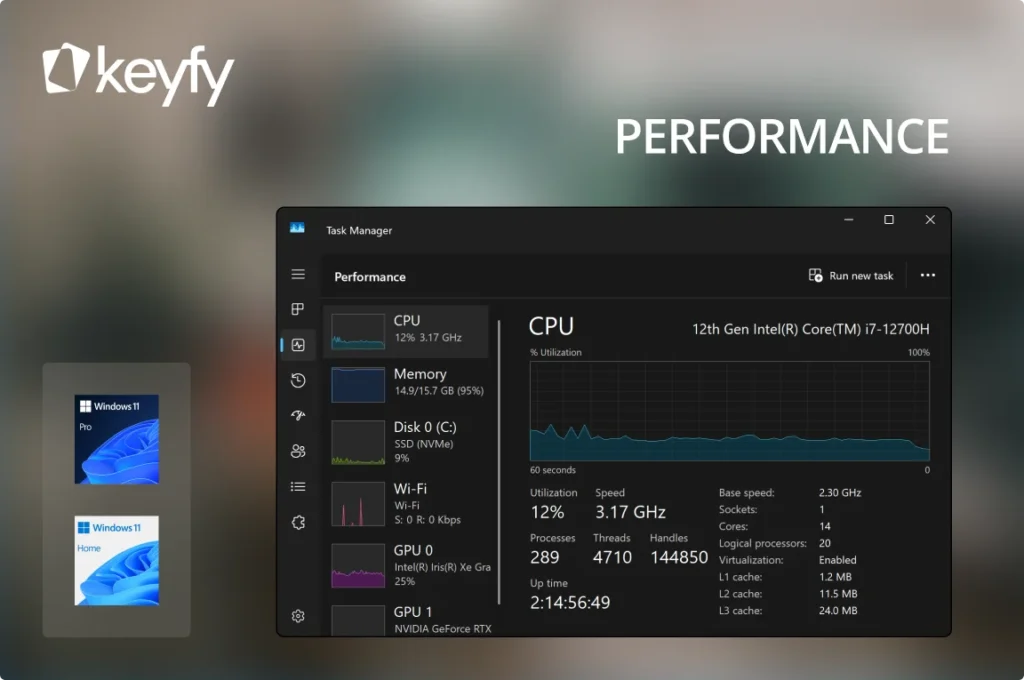
The short answer? Not by default. If you run Windows 11 Home and Pro on the same hardware, you’ll see almost identical performance for everyday tasks — browsing, office work, video calls, or streaming.
The difference only appears when you really push the hardware.
Windows 11 Pro removes several limits that exist in Home. It isn’t inherently “faster” — but it supports more RAM, more CPU cores, and gives you more control over how your system operates. That matters if you use your PC more intensively than the average user.
Key differences:
Memory:
Home supports up to 128 GB RAM — more than enough for most users.
Pro supports up to 2 TB RAM — ideal for high-end workstations and virtual machines.
CPU support:
Home: 1 CPU, up to 64 cores
Pro: 2 CPUs, up to 128 cores
If you edit 4K video, render 3D graphics, or run multiple virtual machines at once, Pro won’t automatically speed up your system — but it also won’t hold it back.
Pro also offers system-level tools like Group Policy Editor, which lets you control startup programs, services, and resource usage on a deeper level. That helps you tune powerful systems for professional workloads.
For the average user, Home is more than fast enough. But if you’re building a workstation or doing heavy multitasking, Pro is the better fit.
Admin & remote tools: Controls Windows 11 Home doesn’t have
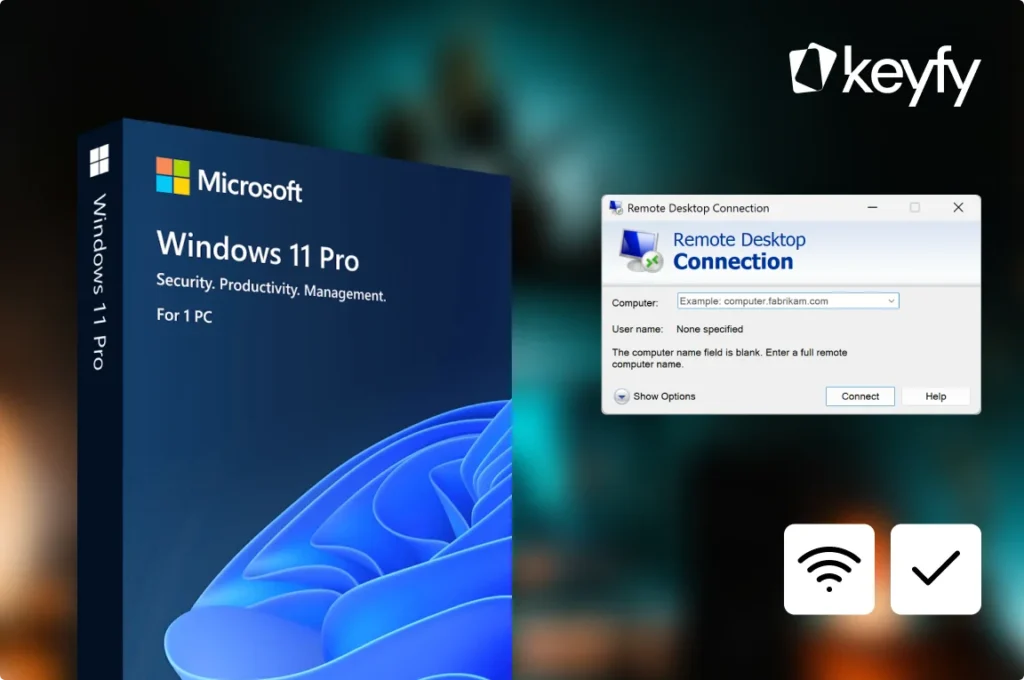
Some tools make it much easier to manage how your system behaves — especially if you’re working with multiple users or need to access a PC remotely. Here are some of the most important extra features Windows 11 Pro includes:
What Windows 11 Pro offers:
- Group Policy Editor – manage app permissions, updates, USB access, and more.
- Remote Desktop – secure access to your PC from virtually anywhere.
- Assigned Access – lock down what another user is allowed to do on your PC — ideal for shared workstations.
These tools are especially useful for:
- Freelancers working from different locations
- Small business owners or team leads managing multiple PCs
- Parents who want more control over content on a shared PC
By comparison, Windows 11 Home offers basic system settings and simple parental controls — but nowhere near the same flexibility.
Bottom line:
If you’ve ever been frustrated by random updates during work hours or tried to lock down certain features on a shared PC, you already know how valuable the system controls in Windows 11 Pro can be.
Virtualization: What it is, who needs it — and why it’s only in Pro
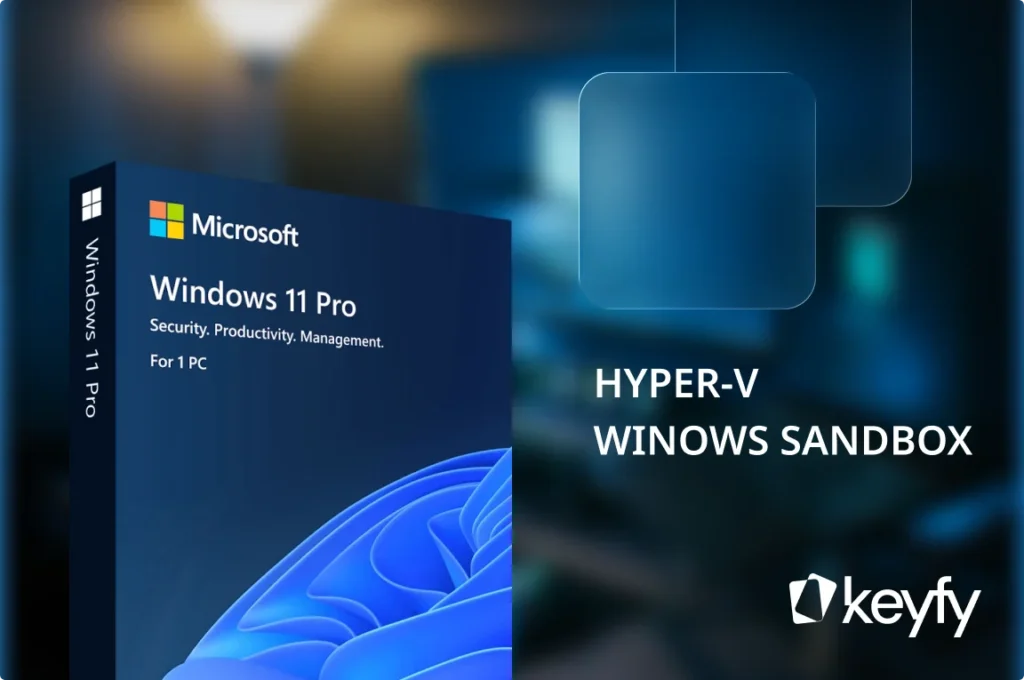
For most people, “virtualization” sounds like a term best left to IT professionals. And often that’s true — if you don’t know what it is, you probably don’t need it.
But for certain users — developers, software testers, cybersecurity students, or privacy-conscious freelancers — virtualization brings real benefits.
Windows 11 Pro includes two core virtualization tools:
- Hyper-V
Lets you create and run virtual machines (VMs) directly on your computer. Example: run Linux inside Windows or open an older Windows environment safely — without needing a second device. - Windows Sandbox
Starts an isolated, temporary Windows session. Example: you download a file or open a link you don’t fully trust. You can test it safely in the Sandbox — and once you close it, everything disappears.
Neither tool is included in Windows 11 Home. And while third-party solutions can mimic some of this, they usually require extra setup, separate licenses, or come with performance trade-offs.
Who benefits?
- Developers testing builds in different environments
- IT security professionals or students learning about safe software behavior
- Anyone who wants to run risky files or software without putting their main system at risk
If that sounds like you, Windows 11 Pro can save you time and the cost of external virtualization tools.
Get your Windows® 11
Professional or Windows® 11 Home
license now!
Gaming: Home vs. Pro – what really changes?
If you’re buying Windows primarily for gaming, here’s the good news: performance is not something you need to stress about. Both editions of Windows 11 — Home and Pro — deliver almost the same gaming experience.
Both editions include:
- Auto HDR: improves colors and contrast in supported games for a more immersive experience
- DirectStorage: reduces load times by sending game data directly from your NVMe SSD to the GPU, bypassing the CPU and speeding up processing
- For smooth gameplay, built-in capture, and easy Xbox integration, you get tools like Xbox Game Bar, Game Mode, and direct access to the Xbox app
What doesn’t change between the two:
- Frame rates (FPS)
- Render quality
- Input latency
According to the Steam Hardware Survey (2024), over 75% of gamers still use Windows 10 or 11 Home editions — mainly because they offer the same gaming performance and compatibility as Pro, without extra features most gamers never touch. Upgrading to Windows 11 Pro won’t magically boost any of these aspects — even on high-end hardware. The graphics engine and game support are identical.
Where Pro can make a difference
If you’re someone who:
- streams regularly with OBS Studio
- keeps lots of tabs and apps open while gaming
- uses external capture cards or multi-monitor setups
- plays and edits, renders, or uploads content at the same time

Interface and Customization Tools: Under-the-Hood Control
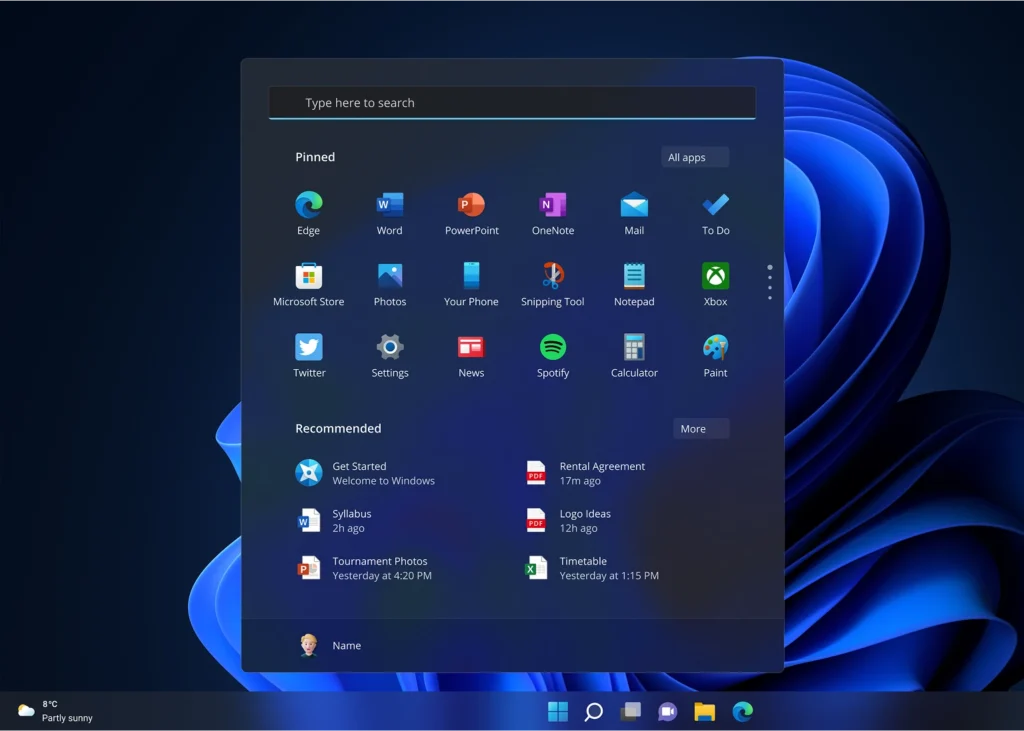
At first glance, both editions of Windows 11 look exactly the same:
- Centered Start menu
- Snap Layouts for multitasking
- Widgets and virtual desktops
- The same animations, rounded corners, and icons
Under the hood, though, Windows 11 Pro offers much more control — especially around system behavior, user access, and update management.
What you can do in Pro — but not in Home:
- Control app access with Group Policies
- Delay or configure updates in detail (handy when you don’t want your PC restarting during work)
- Disable Control Panel or lock down settings for other users
- Apply “enterprise-style” UI restrictions — useful for shared devices
For everyday users, Windows 11 Home offers a great balance of simplicity and performance. But if you want to lock down or centrally manage your PC — for kids, employees, or clients — Windows 11 Pro gives you a much more powerful toolbox.
Final recommendation: Which edition should you buy?
Now that you’ve seen what both editions offer — and where they quietly differ — the question isn’t just “Which is better?” but “Which is better for you and the way you work?”
Whether you’re running a home setup, building a professional workstation, or managing a small fleet of business devices, here’s a quick summary to help you decide with confidence.
| User type | Best choice | Why |
|---|---|---|
| General users (browsing, office work, streaming) | Home | It’s more affordable and covers everything you need. |
| Students / freelancers with basic needs | Home | Security is solid and performance is identical. |
| Freelancers / professionals handling sensitive data | Pro | Includes encryption and better remote access. |
| Developers or testers | Pro | Built-in Hyper-V and Sandbox save time and licensing costs. |
| Small business owners | Pro | Centralized control, security, and Group Policy. |
| Gamers | Home | Same performance unless you’re a heavy multitasking power user. |
| Streamers or content creators | Pro | More RAM/core support and advanced system management options. |
If your setup is relatively simple, the Home edition offers excellent value for money — and you can always upgrade later. But if you work with client data, want full system control, or prefer to avoid future limitations, the one-time upgrade to Pro is more than worth it.
Get your Windows® 11
Professional or Windows® 11 Home
license now!
FAQs
My computer isn’t very powerful – which Windows 11 edition should I choose?
If your PC is older or has only basic hardware, Windows 11 Home is the better choice. It includes all essential features and runs just as smoothly as Pro — without the extra system overhead.
Windows 11 Pro doesn’t require stronger hardware, but it adds features that simpler setups often don’t take advantage of. If you don’t plan to use tools like BitLocker, Remote Desktop, or Hyper-V, Home is the leaner and more sensible option.
Is Windows 11 Pro faster than Home?
No, not by default. Both editions run equally fast on the same hardware.
However, Pro allows more RAM and CPU resources. If your system is already at its limits — especially with a multi-core processor — Pro can deliver noticeable performance benefits.
Can I upgrade from Windows 11 Home to Pro later?
Yes. If you start with a Home license, you can upgrade to Pro at any time by entering a valid Pro key.
Still, it’s often easier and more cost-effective to choose the right edition from the start — especially if you know you’ll use Pro features.
Is Windows 11 Pro better for gaming?
For most people, no. Both editions support the same gaming technologies.
If you’re streaming, editing, or browsing at the same time, the extended RAM/CPU support in Pro can help — but only if your hardware is powerful enough to use it.
Do I need Windows 11 Pro for school or university?
Generally, no.
Unless your studies involve virtualization, software testing, or system administration, Windows 11 Home is absolutely sufficient for academic use.
What if I buy a Pro license but never use the extra features?
No problem — you’re simply not using all the extras.
It’s similar to buying a car with built-in navigation that you never turn on — it doesn’t hurt anything.
Is BitLocker included in Windows 11 Home?
No. Full disk encryption with BitLocker is only available in Windows 11 Pro.
Home offers only basic device encryption, which doesn’t provide the same level of protection or control in case of loss or theft.
How do I find out which Windows edition I’m currently using?
Go to Settings > System > About.
Under Windows specifications, you’ll see the edition listed — either Home or Pro.