




 Nederlands
 Italiano
 Português
 Română
 Español
 Ελληνικά
 Polski
 Türkçe




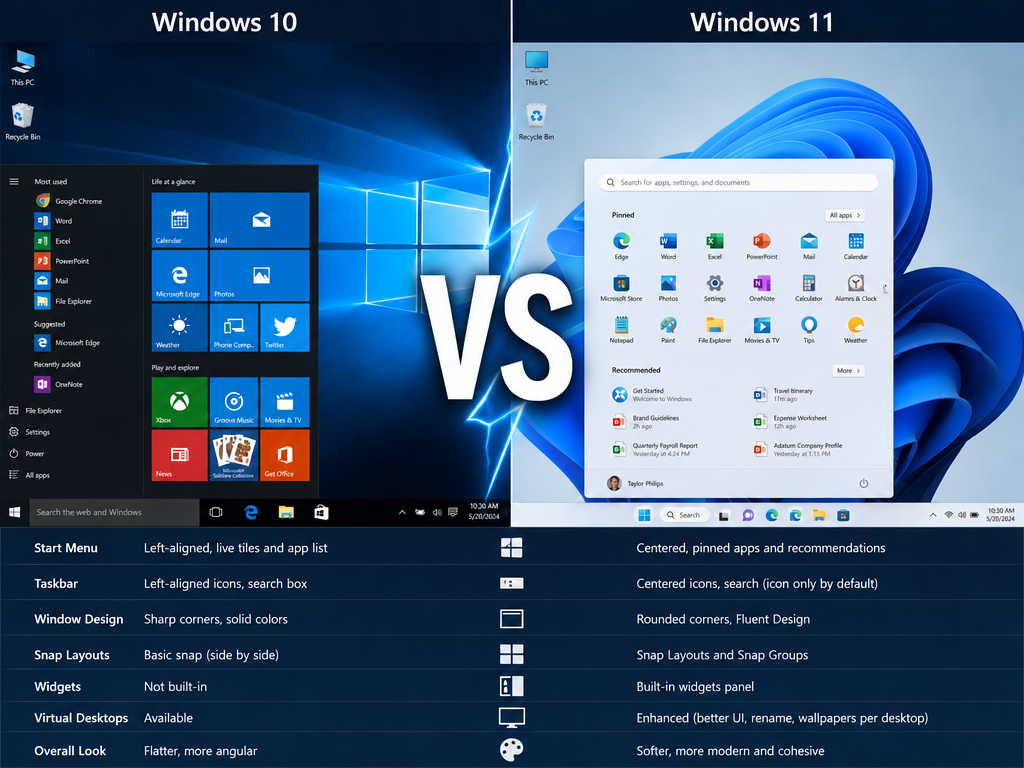
Most articles on this topic give you the same answer regardless of your situation: upgrade; obviously, Windows 11 is newer. That’s not wrong, but it’s not the full picture either. The reasons to upgrade are more specific than that framing suggests, and there are people with legitimate reasons to wait or stay put. This article works through the actual differences and gives a straight answer based on your situation.
Where things stand in 2026
Windows 10 reached end of support in October 2025. It still works, but security updates have stopped – newly discovered vulnerabilities go unpatched indefinitely. Microsoft extended free security coverage through October 2027 for home users, which buys time, but doesn’t change the long-term picture.
Windows 11 is Microsoft’s only actively developed desktop OS. It’s faster on modern hardware, enforces stronger security by default, and will keep receiving updates for years. The main barrier is hardware: Windows 11 requires TPM 2.0, Secure Boot, and a supported CPU, which rules out machines older than around 2017-2019 depending on configuration.
If your PC supports Windows 11, upgrading is the right call. If it doesn’t, you’re managing a temporary situation rather than a permanent one.
Performance: does Windows 11 actually feel faster?
On older hardware, often no – and sometimes the opposite. Windows 11’s memory management and task prioritisation improvements are tuned for modern CPU architectures, particularly Intel’s hybrid core designs and AMD Zen 3 and later chips. On hardware that predates those architectures, the gains are minimal.
On hardware from the last four to five years, the difference is real. Boot times are shorter. Wake from sleep is faster. RAM management is more aggressive about clearing memory from background processes, which shows up when switching between several heavy applications at once.
DirectStorage is the standout performance addition for anyone gaming or working with video. It lets supported applications pull data directly from an SSD to the GPU, bypassing the CPU. On a fast NVMe drive, load times in supported games drop considerably. This is a Windows 11 exclusive – it was never backported to Windows 10 and never will be.
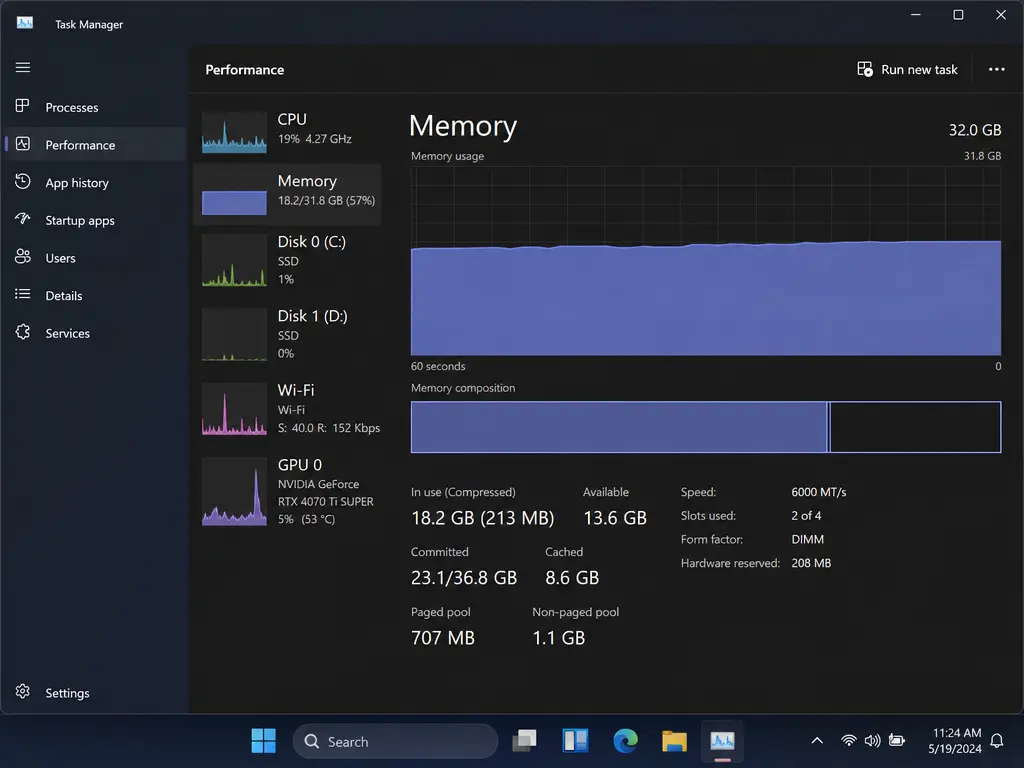
Battery life on laptops has also improved through better background process scheduling. Processes that don’t need to run don’t get the same CPU time they did on Windows 10, which translates to longer battery life on supported hardware – a difference that’s particularly noticeable on thin-and-light laptops doing everyday tasks.
Security: the real argument for upgrading
The performance gains matter. The security difference matters more.
Windows 10 has security features. Windows 11 enforces them. That distinction is worth sitting with.
TPM 2.0 is a hardware chip that stores encryption keys, biometric credentials, and device health information in a protected environment that software – including malware – can’t access directly. Windows 10 supported TPM but didn’t require it. Windows 11 does. The result is that BitLocker, Windows Hello, and device attestation all operate on a hardware foundation rather than software that can be compromised.
Secure Boot prevents unsigned code from running before Windows loads, closing the attack vector used by bootkits and rootkits that install themselves before the OS and stay invisible to any security software running inside it. Windows 10 supported Secure Boot optionally. Windows 11 requires it.
Virtualisation-Based Security (VBS) isolates critical system processes in a protected memory region that kernel-level malware can’t reach. Smart App Control blocks untrusted and unsigned applications from running entirely. Enhanced phishing protection warns you when a password gets typed into a suspicious site or document.
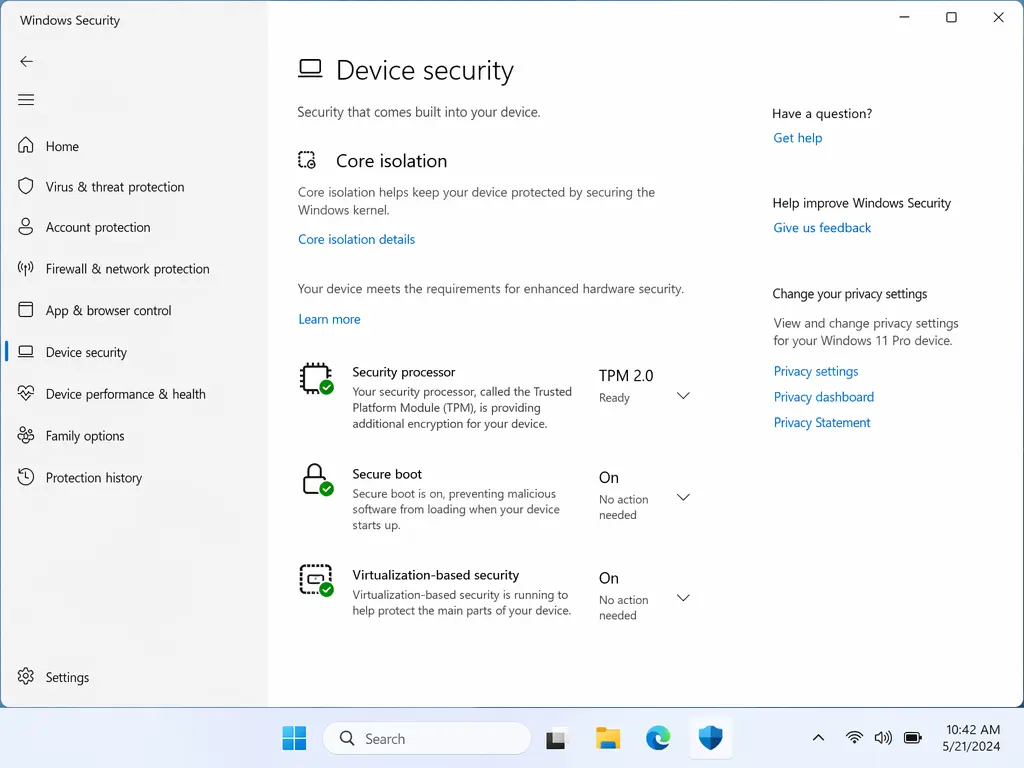
None of this is optional or hidden in a settings menu – it’s built into the foundation. The practical difference is a system that’s considerably harder to compromise at the hardware level, before any third-party security software gets involved.
Features worth knowing about
Some of Windows 11’s additions matter a lot depending on how you work. Others are useful but not transformative.
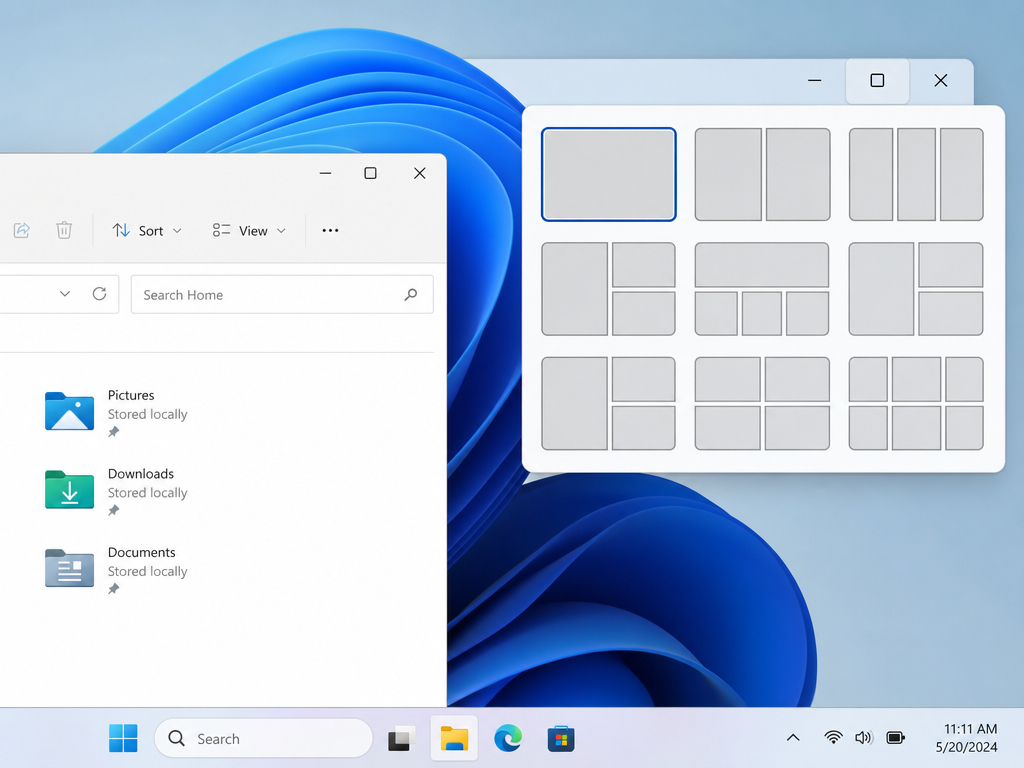
Snap Layouts and Snap Groups are the most practically useful productivity addition. Hover over the maximise button on any window and a grid of layout options appears – arrange your open apps into a configuration and Windows remembers that grouping as a Snap Group. Switch to another task, come back, and everything is exactly where you left it. For anyone switching between applications all day, this saves real time.
[SCREENSHOT: Windows 11 Snap Layouts overlay showing layout grid options – alt text: “Windows 11 Snap Layouts window management productivity feature”]
Virtual Desktops are considerably more usable than the Windows 10 version – separate wallpapers, smoother switching, and the ability to maintain distinct working environments without clutter bleeding between them.
Auto HDR improves visuals in older games on compatible monitors, converting standard dynamic range content to HDR without any action from the developer. On a supported monitor and GPU, older titles look noticeably better without touching a setting.
The taskbar, which was one of the most criticised aspects of Windows 11 at launch, has been substantially updated. It can now be repositioned to any screen edge, sections can be shown or hidden independently, app labels can be turned on for open windows, and a smaller taskbar option frees up screen space. The most persistent complaint about Windows 11 – that it was more locked down than Windows 10 – has largely been addressed.
Copilot and AI features are rolling out steadily through 2026. The most practically useful for standard users are AI-assisted search, improved voice input with background noise filtering, and AI tools built into native Windows apps. Features like Recall – which lets you search your PC activity by describing what you were doing – require Copilot+ certified hardware with an NPU. If your machine has one, these are available. If not, the AI additions are incremental rather than transformative for now.
Compatibility: will your software and hardware still work?
For most users, yes. Windows 11 runs the same applications as Windows 10 – the compatibility layer is unchanged and software that works on Windows 10 almost always works identically on Windows 11.
Worth checking before upgrading:
Specialist or regulated software certified for Windows 10 where the vendor hasn’t confirmed Windows 11 support. Most have by now, but it’s worth verifying for anything business-critical.
Older peripherals – printers, scanners, and specialist hardware from before around 2015 sometimes lack Windows 11 drivers. Most manufacturers have updated their driver packages, but check for anything essential to your workflow.
32-bit applications still run on Windows 11 – what Windows 11 dropped was the 32-bit version of the OS installer, not application compatibility. The two are different things.
Does your PC support Windows 11?
Windows 11 requires a 64-bit processor from Intel 8th generation or later (or AMD Ryzen 2000 or later), 4GB RAM, 64GB storage, TPM 2.0, and Secure Boot. The processor requirement is where most older machines fall short.
Microsoft’s free PC Health Check tool scans your machine and confirms compatibility in under a minute. Most PCs from 2018-2019 onwards pass. Machines from before that period often don’t, primarily due to the CPU requirement.
If your machine qualifies, the upgrade from Windows 10 to Windows 11 is free through Windows Update. Open Settings, go to Windows Update, and if the hardware requirements are met, the upgrade will be offered. No purchase needed.
If your machine doesn’t qualify, the realistic options are: stay on Windows 10 until October 2027 while planning a replacement, upgrade the hardware where possible (adding a TPM module to a compatible desktop motherboard in some cases), or replace the machine and set it up properly on Windows 11 from scratch.
Who should upgrade now
Your machine qualifies and you haven’t done it yet. The upgrade is free, it’s reversible within ten days, and you gain several years of additional security support plus real improvements to performance and security.
You’re buying a new machine. Every new PC should start on Windows 11. Setting up a new machine on Windows 10 means starting with an OS in its final phase.
You handle sensitive data or client files. The hardware-level security in Windows 11 – TPM, Secure Boot, VBS – provides a meaningfully stronger foundation than Windows 10 for anyone whose machine holds commercially or personally sensitive information.
Who can reasonably wait
Your machine is on its last legs and a replacement is coming within the next six to twelve months. Upgrading an ageing machine makes less sense than waiting and setting up the new one properly.
You’re running specialist software that the vendor hasn’t confirmed compatible with Windows 11. Get that confirmation before upgrading – it’s usually a quick check.
Who has a genuine reason to stay on Windows 10
Your hardware doesn’t meet Windows 11 requirements and replacement isn’t currently an option. Extended security coverage runs to October 2027. After that, the machine still works but unpatched vulnerabilities accumulate.
You operate fixed-function machines – kiosks, production line controllers, medical devices – where system stability matters more than feature currency. For these, Windows 11 Enterprise LTSC is typically the right long-term answer rather than the standard upgrade path.
Windows 11 Home vs Pro: which one do you need?
If you’re upgrading or buying new, this is worth a few minutes of thought.
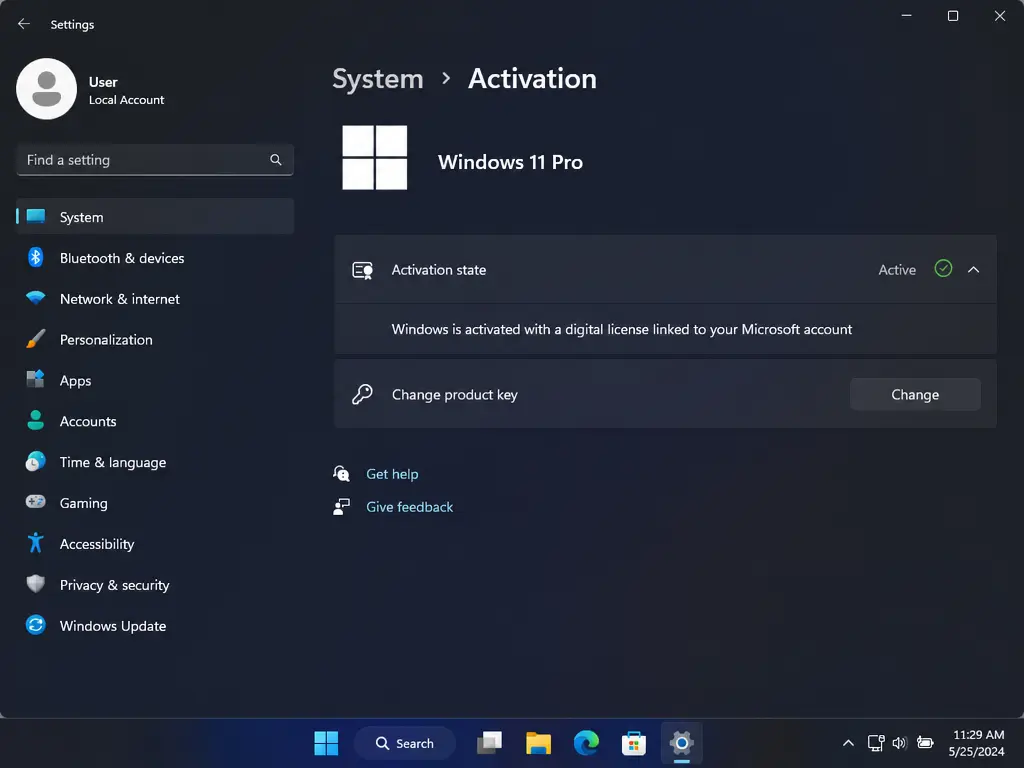
Windows 11 Home covers everything most personal users need. Windows 11 Pro adds BitLocker full-disk encryption, Remote Desktop, Hyper-V virtualisation, and Windows Update for Business – which gives control over when updates land. If you work from home and need remote access to your main machine, handle client files that need to be encrypted, or want control over update timing, Pro is worth it. If none of those apply, Home is the right choice.
Both Windows 11 Home and Windows 11 Professional are available at Keyfy with instant delivery. If you want Windows 11 and Office sorted in one go, the Windows 11 Pro and Office 2024 bundle covers both in a single purchase.
The bottom line
Windows 10 is a good OS that has run out of road. Windows 11 is faster on modern hardware, more secure by design, and the only version Microsoft is actively developing. The upgrade is free if your hardware qualifies – and if it doesn’t, that’s the real problem to solve.