





 Nederlands
 Italiano
 Português
 Română
 Español
 Ελληνικά
 Polski
 Türkçe


Fix Windows 10 Media Creation Tool Error 0x80072F8F – 0x20000
The Media Creation Tool for Windows 10 is officially compatible with Windows 7 and Windows 8. However, the error message “Problem running this tool” with error code 0x80072F8F – 0x20000 often occurs, preventing the tool from starting.
We will show you a simple solution to fix this problem quickly.
Tip: Do you need a valid Windows license key? At Keyfy you get genuine license keys at the best price.
Read the step-by-step guide now and solve the problem.
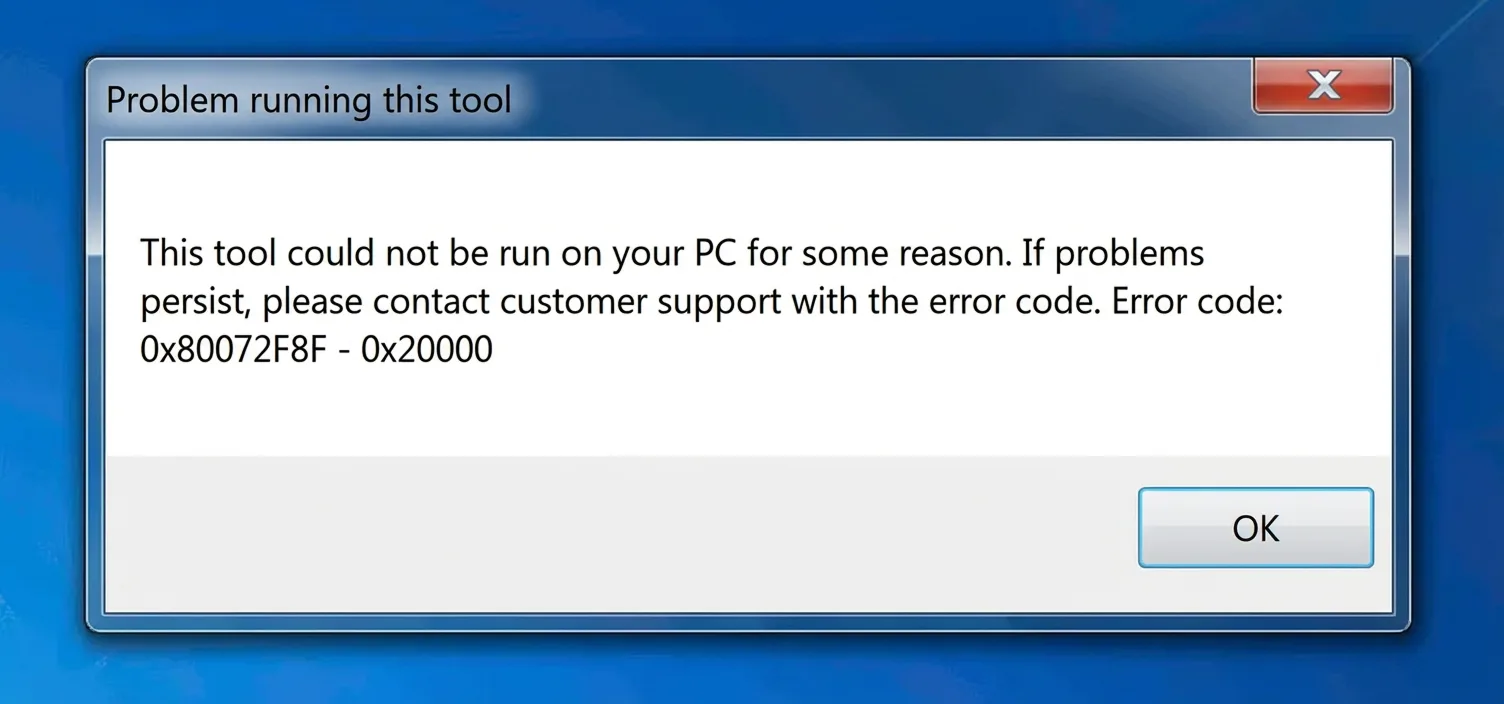
Solution: Fix Error 0x80072F8F – 0x20000 in Media Creation Tool
If the Media Creation Tool does not start on Windows 7 or Windows 8, it is because the encryption protocol TLS 1.2 is disabled by default. However, this protocol is required to run the tool. This problem does not occur in Windows 8.1, Windows 10, and Windows 11.
Follow our 5-step guide to solve the problem quickly. If you need assistance, we will help you for free via live chat and remote connection.
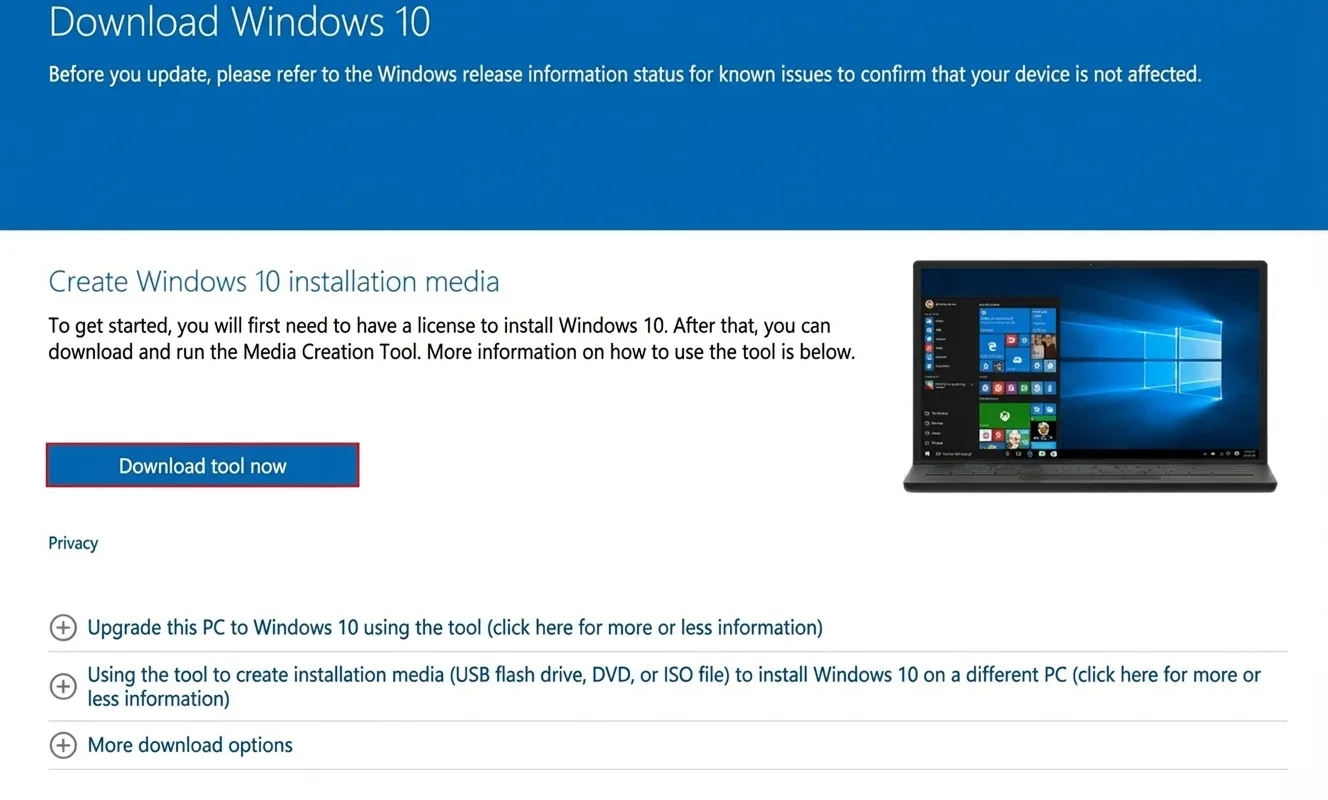
Step 1: Download Media Creation Tool
Download the Media Creation Tool for Windows 10 directly from the official Microsoft website. Click on “Download tool now”.
Step 2: Create a New Text Document on the Desktop
After you have downloaded the Media Creation Tool, you need to make a small adjustment in the Windows settings.
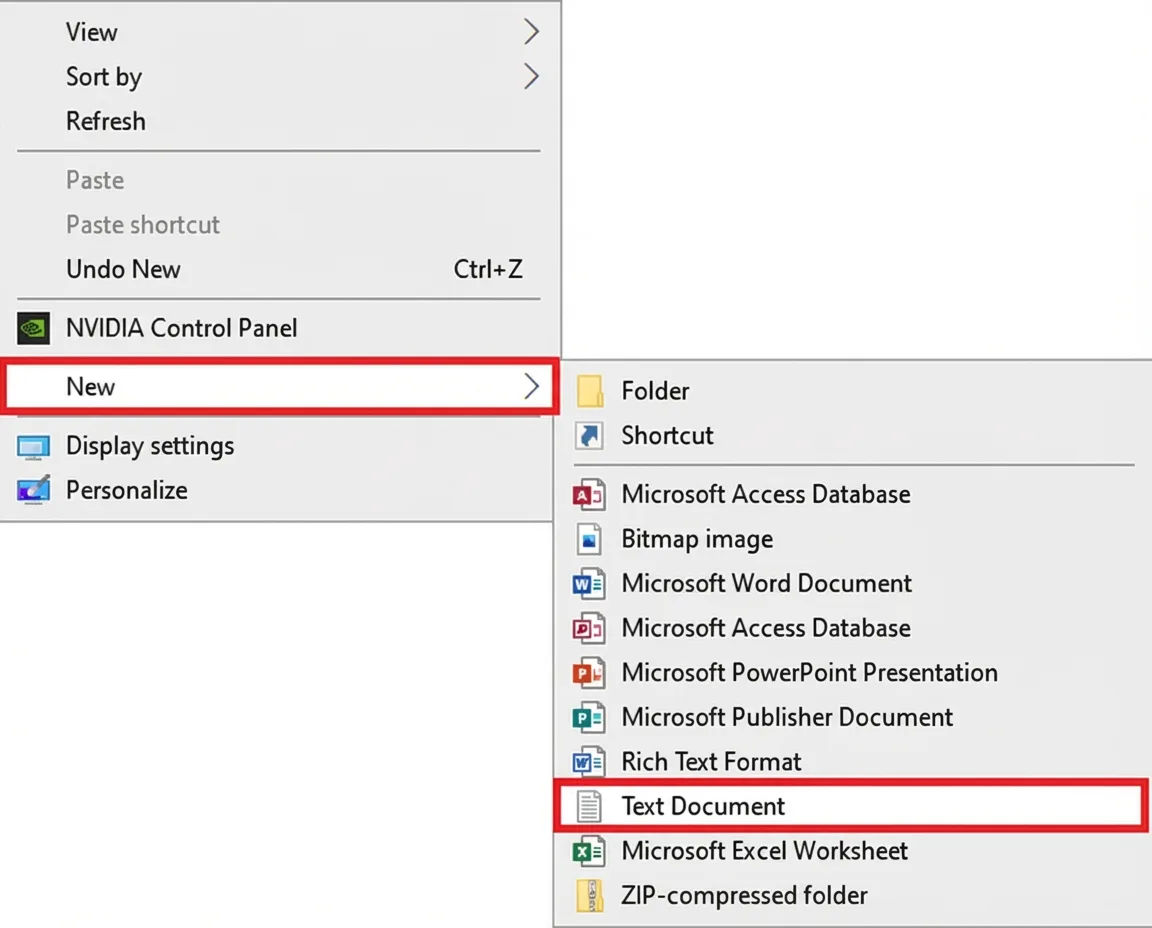
- Create a new text document:
- Right-click on an empty space on your desktop.
- Select “New” and then “Text Document“.
- An empty text document is created.
Step 3:
Copy the following text and paste it into the text document. Then save the text document under the name “activate_tls.reg“, without quotation marks!
Windows Registry Editor Version 5.00[HKEY_LOCAL_MACHINESOFTWAREMicrosoftWindowsCurrentVersionInternet SettingsWinHttp]“DefaultSecureProtocols”=dword:00000a00[HKEY_LOCAL_MACHINESOFTWAREWow6432NodeMicrosoftWindowsCurrentVersionInternet SettingsWinHttp]“DefaultSecureProtocols”=dword:00000a00[HKEY_LOCAL_MACHINESYSTEMCurrentControlSetControlSecurityProvidersSCHANNELProtocolsTLS 1.1Client]“DisabledByDefault”=dword:00000000“Enabled”=dword:00000001[HKEY_LOCAL_MACHINESYSTEMCurrentControlSetControlSecurityProvidersSCHANNELProtocolsTLS 1.2Client]“DisabledByDefault”=dword:00000000“Enabled”=dword:00000001
Step 4:
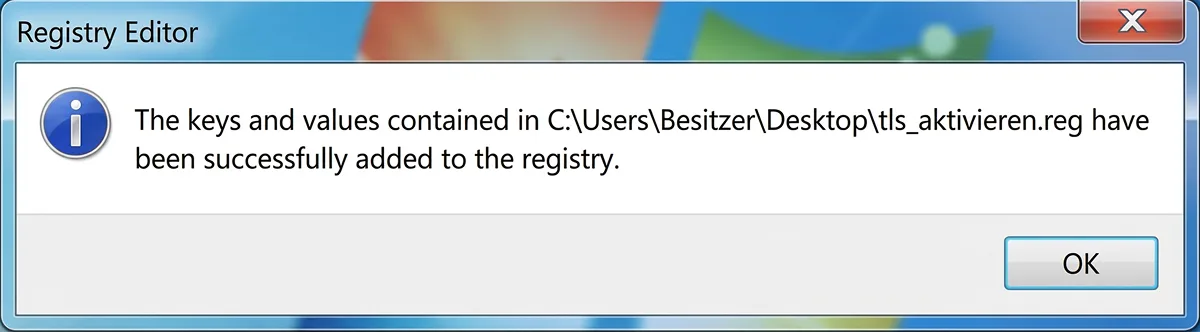
Now double-click on the saved text document activate_tls.reg and confirm with “Yes” when asked if the registry should be modified or extended.
Step 5:
Now Update KB3140245 must be downloaded and installed. You can download this update here in the Microsoft Update Catalog. The update is available for 32-bit and 64-bit systems. You can find out which system you are using here. You usually do not need the update under Windows 8.
- Update for Windows 7 (KB3140245) (32-bit)
- Update for Windows 7 for x64-based Systems (KB3140245) (64-bit)
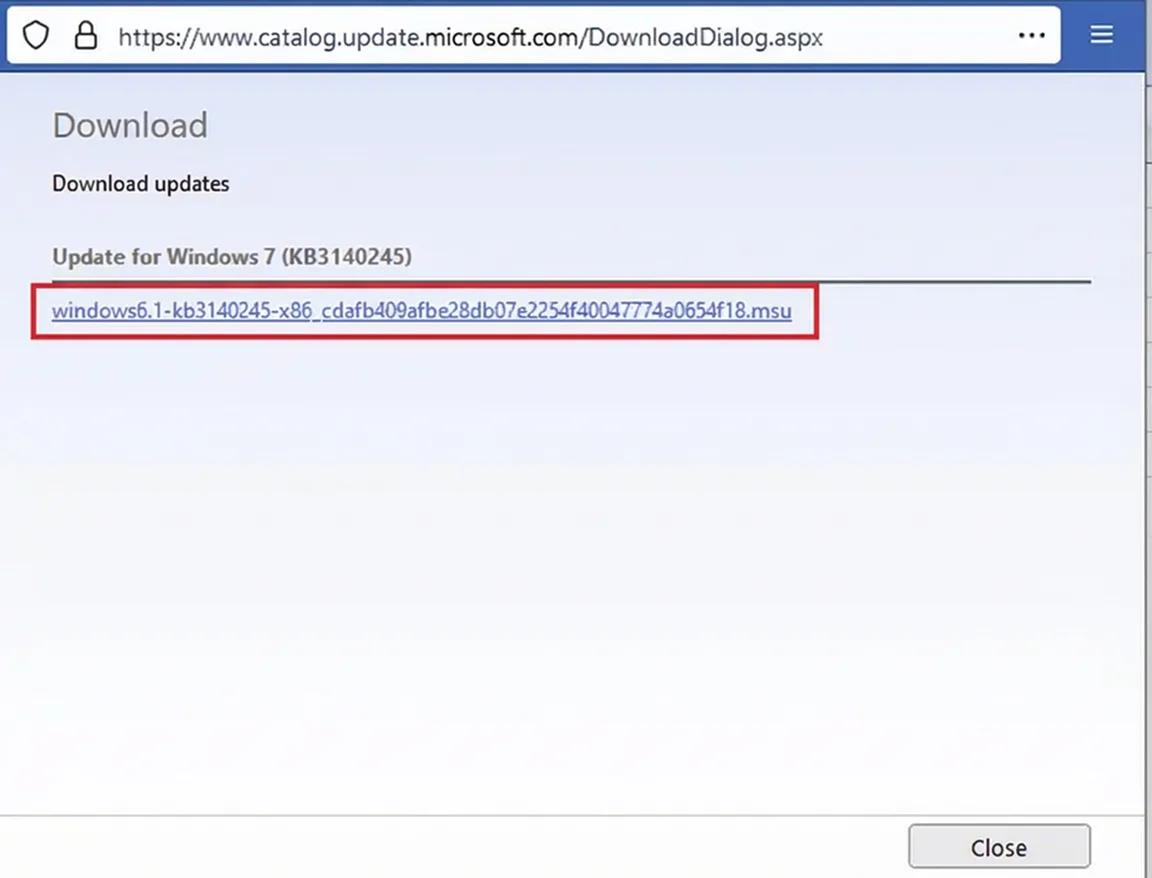
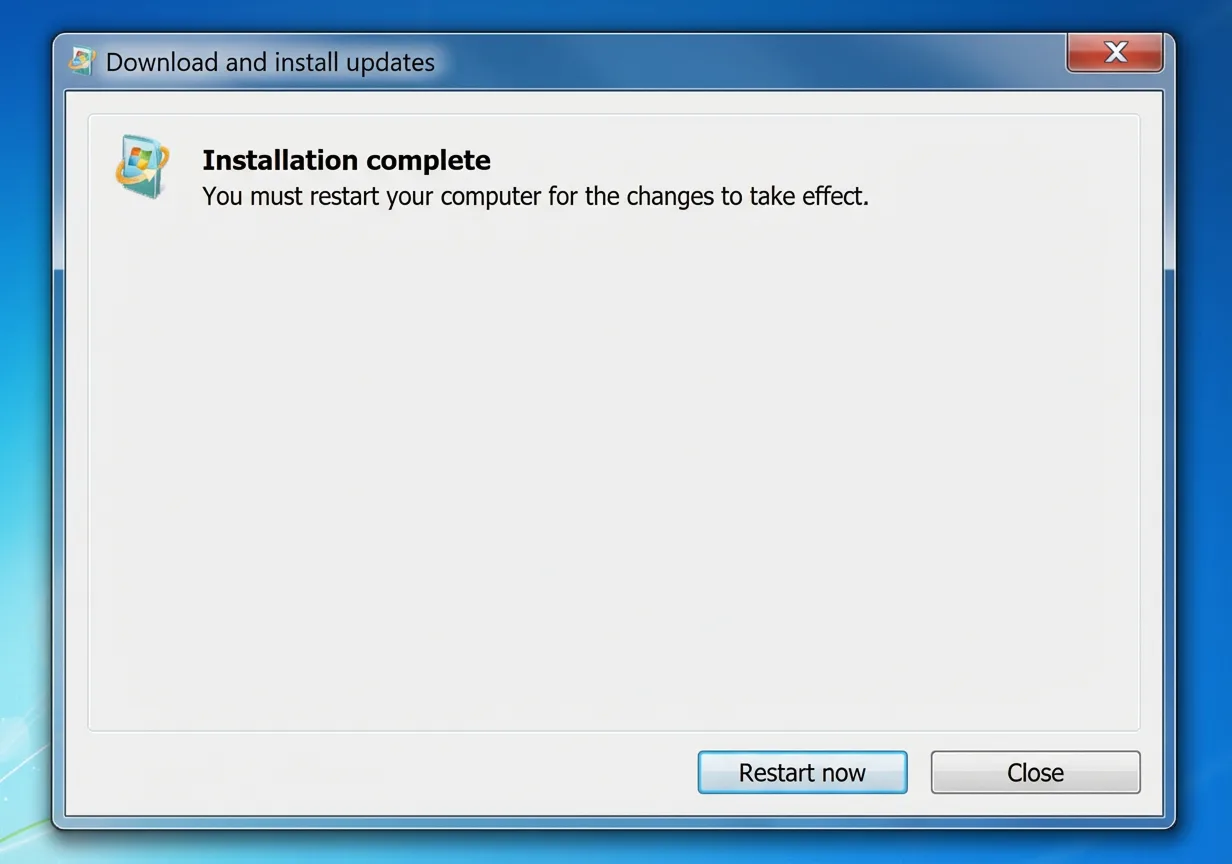
In the Microsoft Update Catalog, click “Download” next to the correct version and then on the blue link in the pop-up window that appears. Then install the downloaded update and perform a restart.
Done! Media Creation Tool usable on Windows 7
After installing the update and restarting, you can now use the Media Creation Tool on Windows 7 without any problems.
➡️ Do you want to create a bootable USB stick with the Media Creation Tool?
You can find detailed instructions for creating and booting a USB stick here.
Do you need help?
Simply contact us in our Live Chat – we are happy to help!