




 Nederlands
 Italiano
 Português
 Română
 Español
 Ελληνικά
 Polski
 Türkçe


Activate Windows 11 Online & by Phone
Sometimes Windows online activation fails. This can have various reasons, such as server overload or using a previously used license key. Don’t worry! In this guide, we show you step-by-step how to activate your Windows system in less than 2 minutes – quickly and easily.
Note: You can skip steps 1–4 if you have already entered your license key during online activation.
For this guide, you need a valid Windows license key. If you don’t have one yet, visit our License Shop and get your key at a great price.
Step 1
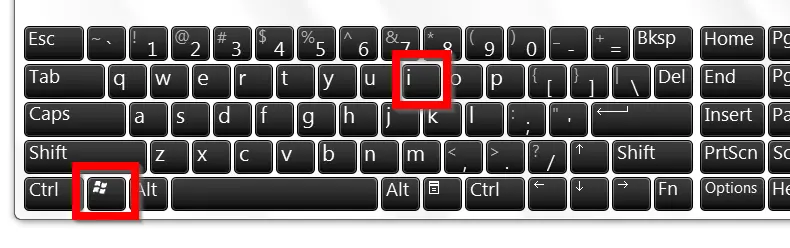
Press the key combination Windows + i to open Settings.
Step 2
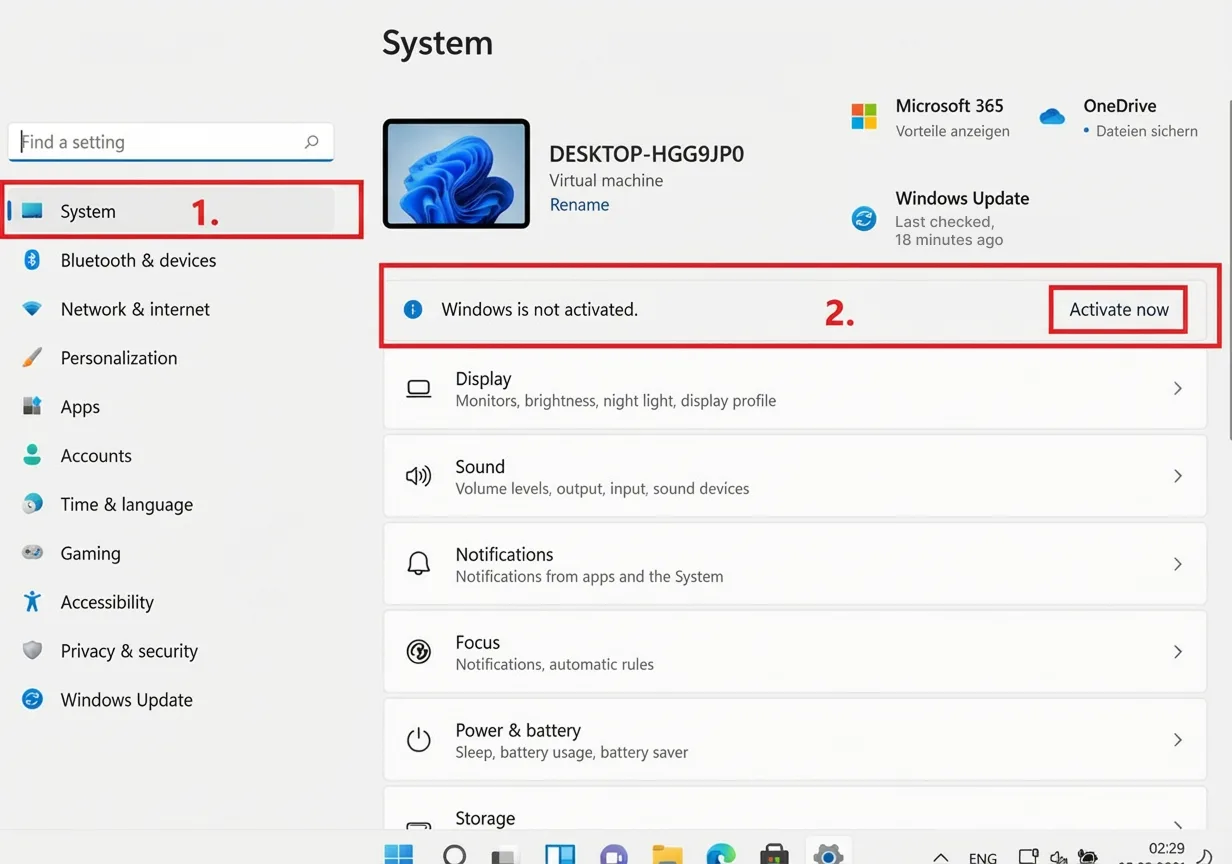
In the left vertical menu, click on System and then on Activate now. If this button is not visible, it means your operating system has already been successfully activated.
Step 3
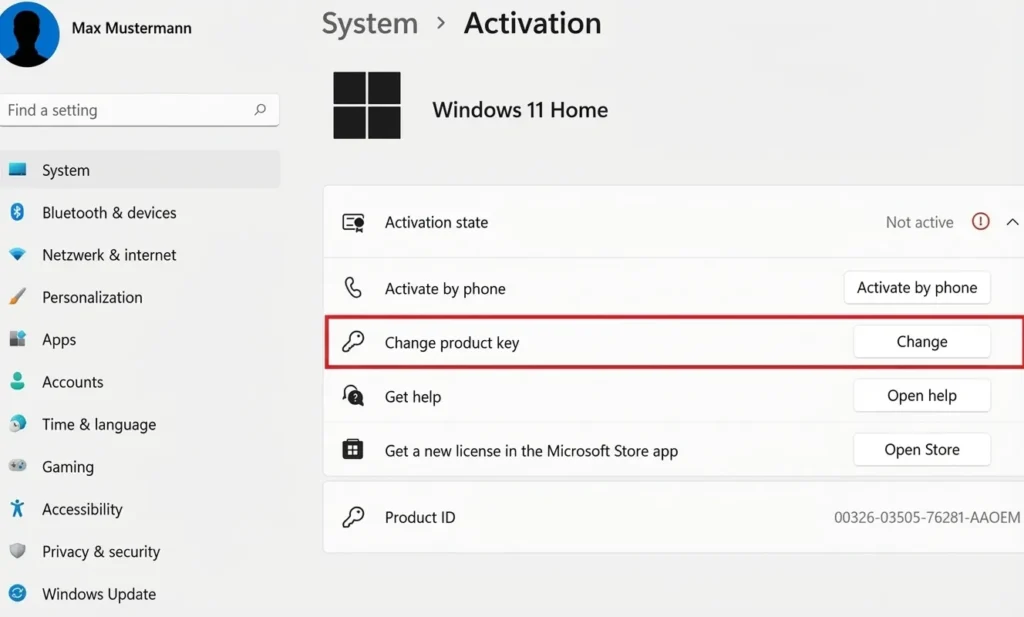
Click the Change product key button to enter your license key and start the activation process.
Step 4
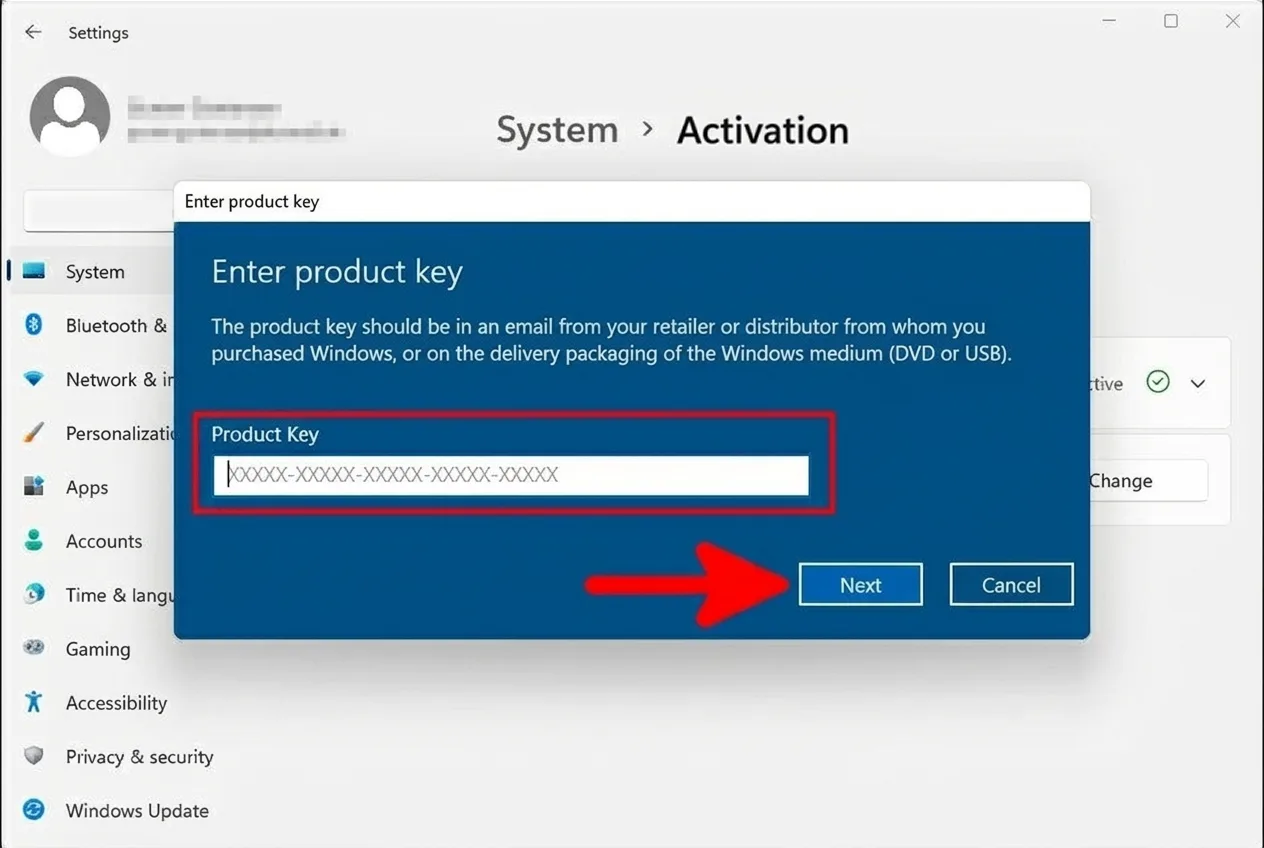
Enter your product key that you received from us via email. Confirm the entry by clicking Next to continue the activation process.
Done
Usually, the activation of your system will now be successfully confirmed.
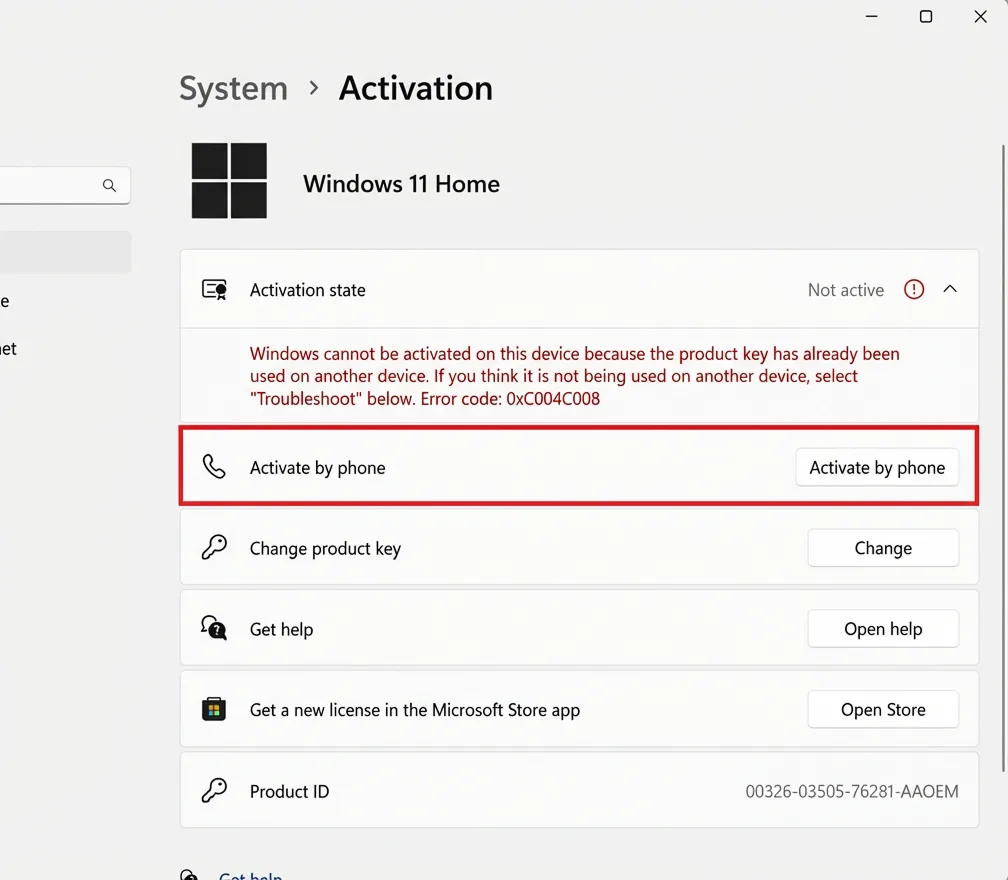
However, does an error message like 0xC004C008 appear?
No problem! Follow our detailed guide for phone activation starting from Step 5 to solve the problem quickly.
Step 5 (Phone Activation)
Close the displayed error message if present, and click Activate by phone on the previous page.
If the Phone activation option is not displayed, enter the command SLUI.EXE 4 into the search bar on your desktop instead to start the activation process manually.
Step 6
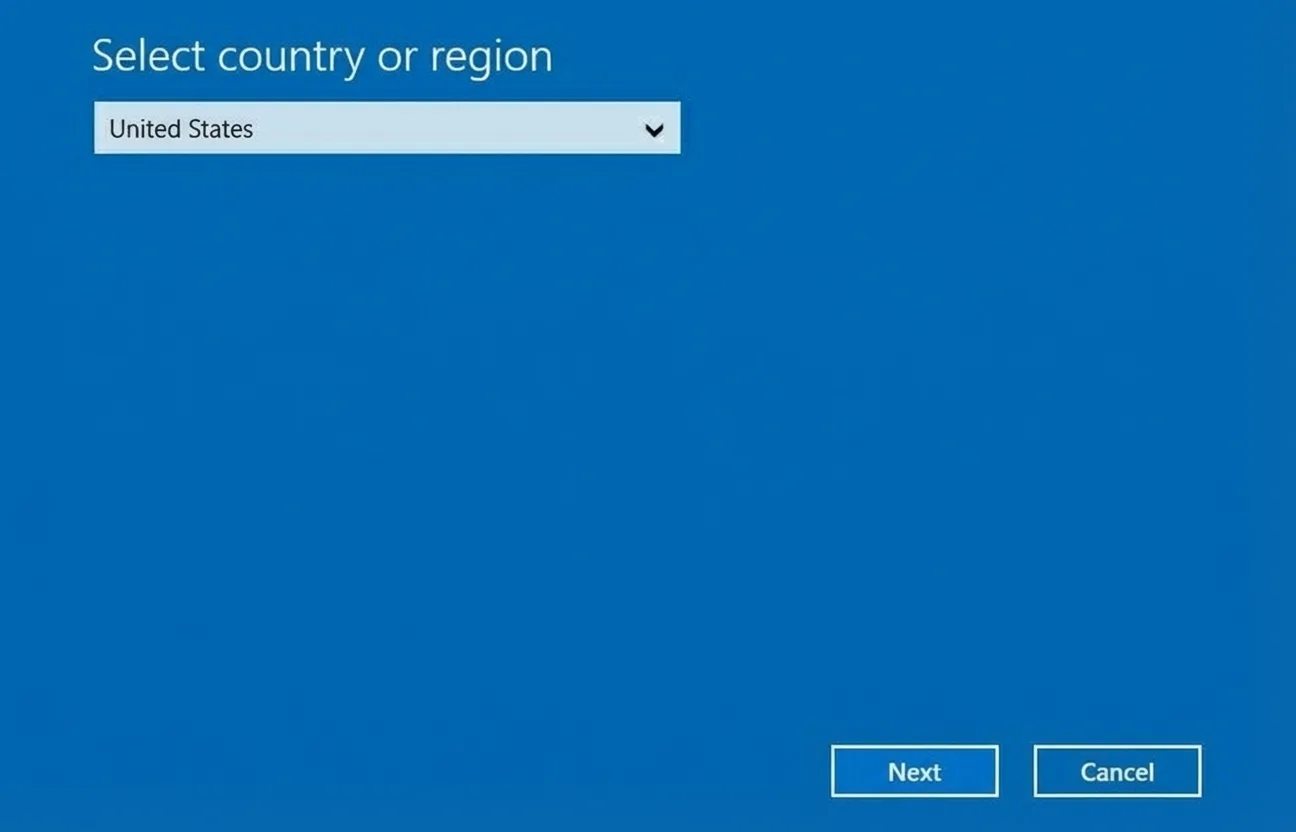
Select your preferred language and region from the list to continue. This selection ensures you receive the correct information for phone activation.
Step 7
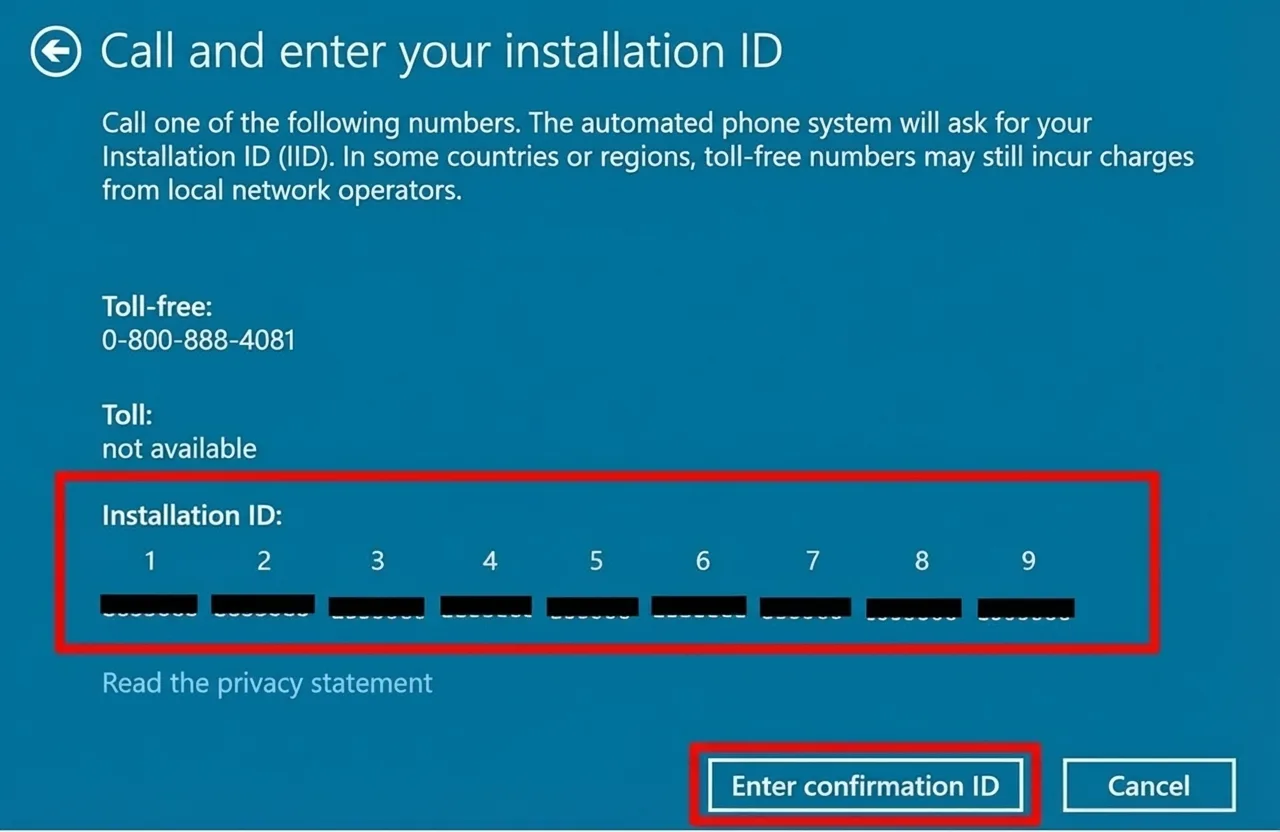
The Installation ID and a toll-free number to call will now appear on your screen. You will be connected to a virtual assistant from Microsoft who will guide you through the activation process.
Note: Microsoft does not accept calls with a blocked caller ID. Make sure your number is visible before making the call.
Microsoft Call Process
- Microsoft call process
- May the call be recorded?
Press 1 for Yes, or 2 for No. - You will receive an individual security code. Enter this using your phone’s keypad.
- Press 1 to activate Windows.
- Press 1 to activate Windows 10 or 11.
- Press 1 to confirm the installation has already taken place.
- Press 1 to confirm an error code.
- Press 1 to confirm a reactivation.
- Press 3 to confirm error code 0xC004C008.
- Press 1 to confirm you are at the affected PC.
- Now you will be asked to enter the Installation ID via your phone’s keypad.
- Important! When asked how many times you have already activated the product, press 0 !
- If you have entered the Installation ID correctly, you will receive the Confirmation ID for the final activation in return.
- Note down this Confirmation ID carefully!
- Then click on Enter Confirmation ID in the Windows window.
- May the call be recorded?
Step 8
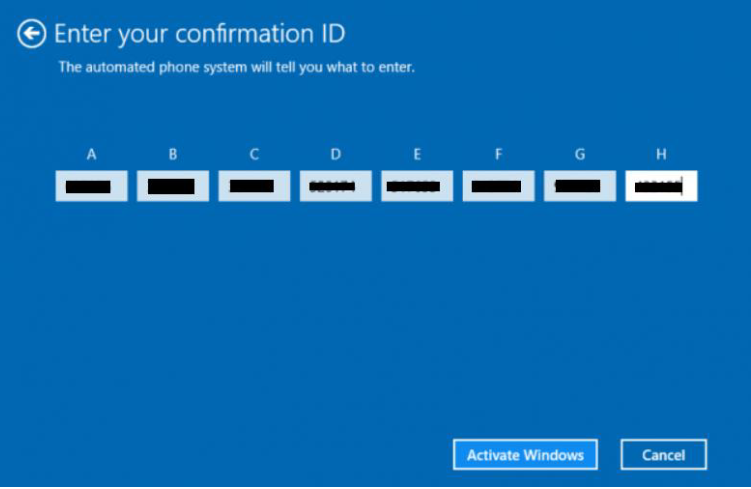
Now enter your Confirmation ID into blocks A-H and confirm your entry by clicking Activate Windows. Done!